受Storytelling with Data启发的快速指南
“我的数据可视化能力很差。我的观众对我的工作似乎不感兴趣,更糟糕的是,他们并不被我所说服。”
曾经有很多人遇到过这个问题。除非你天赋异禀或者之前碰巧学过设计课程,否则要制作直观且视觉美观的图表可能会相当具有挑战性且耗时。
以下是当时我所思考的:我想在制作图表时更加有目的性,以便直观地向我的观众传达信息。我的意思是不让他们过多地消耗脑力和时间来理解发生的事情。
我曾经以为从Matplotlib切换到Seaborn,最后再切换到Plotly可以解决美观性的问题。事实上,我错了。可视化不仅仅是美观。以下是我试图复制自Cole Nussbaumer Knaflic的《Storytelling with Data》¹的两个可视化图表,它们给我改变可视化方法的灵感。它们看起来简洁、优雅且有目的性。我们将在本文中尝试复制这些图表!
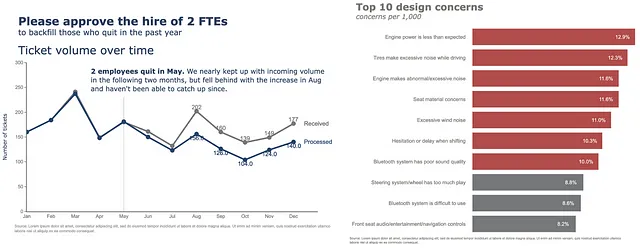
这篇文章的要点如下。如果你想深入了解优秀可视化背后的概念,请查阅《Storytelling with Data》¹,每一页都是值得你花时间去读的珍宝。如果你想要针对具体工具的实用建议,你来对地方了。Cole在书的开头提到,她给出的建议是通用的且不依赖特定的工具,尽管她承认她在书中使用Excel创建了这些示例。有些人,包括我在内,出于很多原因不喜欢Excel和拖放工具。一些人更喜欢使用Python、R和其他一些编程语言来创建可视化。如果你属于这一群体,并且将Python作为你的主要工具,那么这篇文章就是为你准备的。
目录
- 链接 – Pandas绘图
- 水平条形图
- 折线图
- 奖励:数字图表
链接 – Pandas绘图
如果你在使用Pandas进行数据处理方面有一定的经验,你可能会遇到或者甚至采用了“链接”的思想。简而言之,链接使得你的代码更易读、更容易调试,并且更适合生产环境。以下是一个简单的例子,你不需要逐行阅读,只需快速浏览一下以了解“链接”的思想。每一步都很清晰易懂,代码组织良好,没有不必要的中间变量。
(epl_10seasons .rename(columns=lambda df_: df_.strip()) .rename(columns=lambda df_: re.sub('\W+|[!,*)@#%(&$_?.^]', '_', df_)) .pipe(lambda df_: df_.astype({column: 'int8' for column in (df_.select_dtypes("integer").columns.tolist())})) .pipe(lambda df_: df_.astype({column: 'category' for column in (df_.select_dtypes("object").columns.tolist()[:-1])})) .assign(match_date=lambda df_: pd.to_datetime(df_.match_date, infer_datetime_format=True)) .assign(home_team=lambda df_: np.where((df_.home_team == "Arsenal"), "The Gunners", df_.home_team), away_team=lambda df_: np.where((df_.away_team == "Arsenal"), "The Gunners", df_.away_team), month=lambda df_: df_.match_date.dt.month_name()) .query('home_team == "The Gunners"'))这很棒,但你知道你可以继续使用链接的方式创建基本的可视化图表吗?Pandas绘图默认使用Matplotlib后端来实现这个目的。让我们看看它是如何工作的,并复现一些Cole在她的书中创建的示例。
import pandas as pd
import numpy as np
import matplotlib.pyplot as plt
import seaborn as sns
import plotly.graph_objects as go
%matplotlib inline
pd.options.plotting.backend = 'plotly'
df = pd.DataFrame({"concerns": ["发动机功率低于预期",
                                 "行驶中轮胎噪音过大",
                                 "发动机发出异常/过大噪音",
                                 "座椅材料问题",
                                 "过大的风噪声",
                                 "换挡时出现犹豫或延迟",
                                 "蓝牙系统声音质量差",
                                 "转向系统/方向盘松动过大",
                                 "蓝牙系统使用困难",
                                 "前排座椅音频/娱乐/导航控制"
                                 ],
                   "每1,000个问题": [12.9, 12.3, 11.6, 11.6, 11.0, 10.3, 10.0, 8.8, 8.6, 8.2]},
                   index=list(range(0,10,1)))
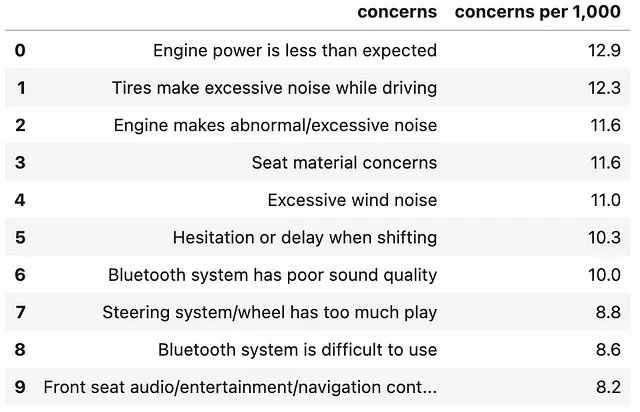
我们有一个看起来像这样的DataFrame。
(df .plot .barh())这是生成基本可视化图表的最快方法。通过从DataFrame直接链接.plot属性和.line方法,我们得到了下面的图表。

如果你认为上面的图表在审美上不过关,那么请先忍住你的反应和判断。事实上,它看起来相当丑陋。让我们来优化一下。这里有个技巧,将Pandas的绘图后端从Matplotlib切换到Plotly,就能解开即将展开的魔法。
pd.options.plotting.backend = 'plotly'你可能会问,“为什么要改为Plotly?Matplotlib不也能做同样的事吗?”好吧,这就是区别。
如果我们在Pandas中使用Matplotlib后端,它会返回一个Axes对象,尝试使用内置的type()方法验证一下。这很棒,因为Axes对象允许我们访问进一步修改图表的方法。查看这篇文档²以了解可在Axes对象上执行的可能方法。我们来选择一个方法快速说明一下。
(df .plot .barh() .set_xlabel("每1,000个问题"))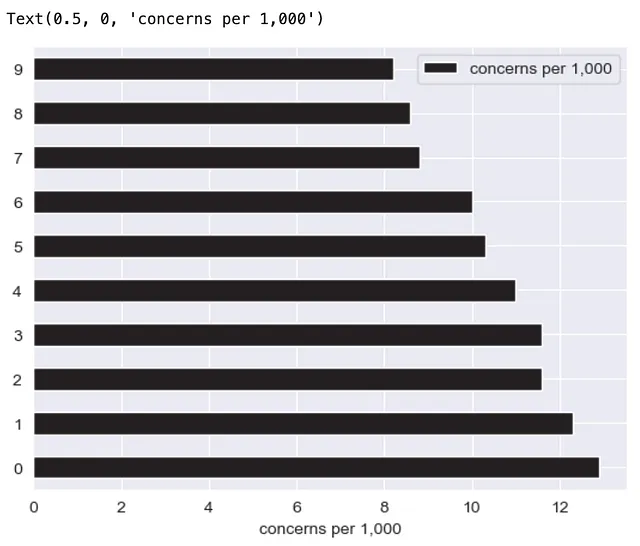
我们成功将x轴标签设置为“每1,000个问题”,但在这样做的同时,我们返回了一个Text对象,失去了我们宝贵的Axis对象,无法访问进一步修改图表的方法。太遗憾了!
这里有一个绕过上述限制的替代方法,
(df .plot .barh(xlabel="每1,000个问题", ylabel="问题", title="前10个设计问题"))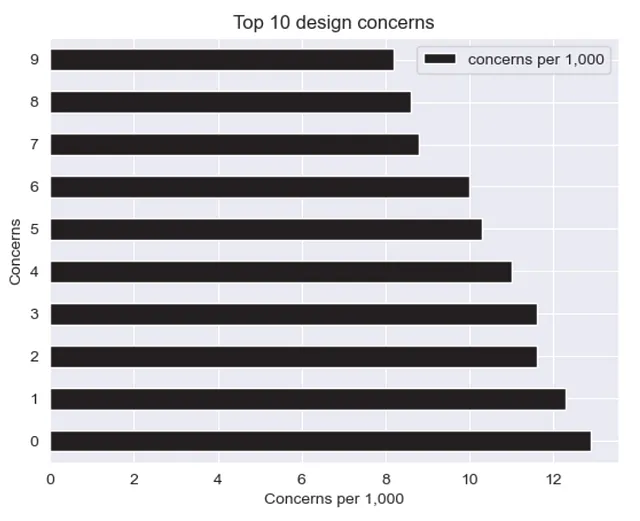
然而,由于Pandas的实现限制,我们仍然无法进行大量的修改。
另一方面,Plotly不返回Axes对象。它返回一个go.Figure对象。这里的区别在于负责更新图表的方法也会返回一个go.Figure对象,允许您继续链式调用方法来进一步更新图表。我们来试一试!
顺便说一下,如果你想知道我是如何得到下面的方法和参数组合的,它们都可以在官方文档这里³找到。
下面是一些重要的方法供你开始使用 — .update_traces, .add_traces, .update_layout, .update_xaxes, .update_yaxes, .add_annotation, .update_annotations。
水平柱状图
让我们为下面的可视化定义一组颜色调色板。
GRAY1, GRAY2, GRAY3 = '#231F20', '#414040', '#555655'GRAY4, GRAY5, GRAY6 = '#646369', '#76787B', '#828282'GRAY7, GRAY8, GRAY9, GRAY10 = '#929497', '#A6A6A5', '#BFBEBE', '#FFFFFF'BLUE1, BLUE2, BLUE3, BLUE4, BLUE5 = '#25436C', '#174A7E', '#4A81BF', '#94B2D7', '#94AFC5'BLUE6, BLUE7 = '#92CDDD', '#2E869D'RED1, RED2, RED3 = '#B14D4A', '#C3514E', '#E6BAB7'GREEN1, GREEN2 = '#0C8040', '#9ABB59'ORANGE1, ORANGE2, ORANGE3 = '#F36721', '#F79747', '#FAC090'gray_palette = [GRAY1, GRAY2, GRAY3, GRAY4, GRAY5, GRAY6, GRAY7, GRAY8, GRAY9, GRAY10]blue_palette = [BLUE1, BLUE2, BLUE3, BLUE4, BLUE5, BLUE6, BLUE7]red_palette = [RED1, RED2, RED3]green_palette = [GREEN1, GREEN2]orange_palette = [ORANGE1, ORANGE2, ORANGE3]sns.set_style("darkgrid")sns.set_palette(gray_palette)sns.palplot(sns.color_palette())
在这里,我们想要通过定义一个单独的颜色来突出显示等于或高于10%的关注点。
color = np.array(['rgb(255,255,255)']*df.shape[0])color[df .set_index("concerns", drop=True) .iloc[::-1] ["concerns per 1,000"]>=10] = red_palette[0]color[df .set_index("concerns", drop=True) .iloc[::-1] ["concerns per 1,000"]<10] = gray_palette[4]然后我们直接从DataFrame中创建图表。
(df .set_index("concerns", drop=True) .iloc[::-1] .plot .barh() .update_traces(marker=dict(color=color.tolist())))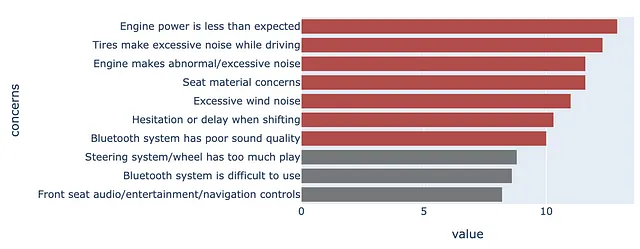
更新布局得到以下结果。在这里,我们指定了模板,添加了标题和边距,并指定了我们的图形对象的大小。暂时不要注释掉注释。
(df .set_index("concerns", drop=True) .iloc[::-1] .plot .barh() .update_traces(marker=dict(color=color.tolist())) .update_layout(template="plotly_white", title=dict(text="<b>Top 10设计关注点</b> <br><sup><i>每千个关注点</i></sup>", font_size=30, font_color=gray_palette[4]), margin=dict(l=50, r=50, b=50, t=100, pad=20), width=1000, height=800, showlegend=False, #annotations=annotations ))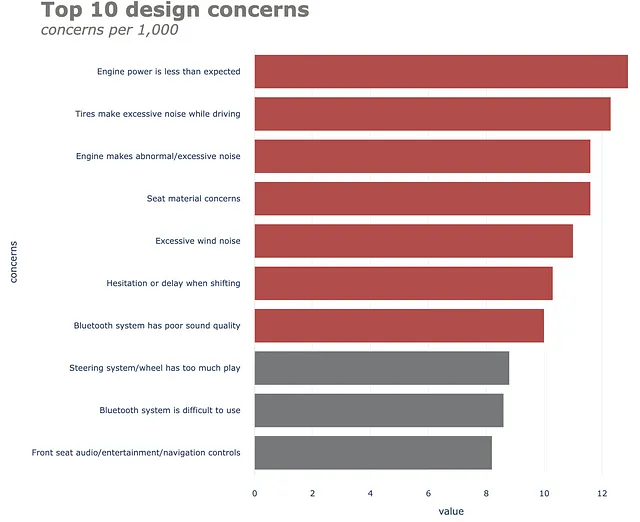
更新x和y轴属性得到以下结果。
(df .set_index("关注点", drop=True) .iloc[::-1] .plot .barh() .update_traces(marker=dict(color=color.tolist())) .update_layout(template="plotly_white", title=dict(text="<b>前10个设计关注点</b> <br><sup><i>每1,000个关注点</i></sup>", font_size=30, font_color=gray_palette[4]), margin=dict(l=50, r=50, b=50, t=100, pad=20), width=1000, height=800, showlegend=False, #annotations=annotations ) .update_xaxes(title_standoff=10, showgrid=False, visible=False, tickfont=dict( family='Arial', size=16, color=gray_palette[4],), title="") .update_yaxes(title_standoff=10, tickfont=dict( family='Arial', size=16, color=gray_palette[4],), title=""))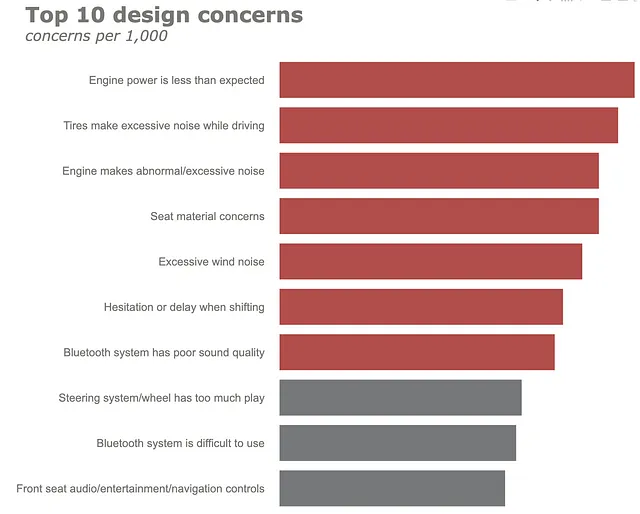
最后但并非最不重要的是,我们将在图表中添加一些注释。在这里,我们有一些注释 —— 向水平条形图和脚注添加数据标签。让我们一起来做。首先,在一个单独的单元格中定义注释。
annotations = []y_s = np.round(df["每1,000个关注点"], decimals=2)# 向水平条形图添加数据标签for yd, xd in zip(y_s, df.关注点):    # 标记条形图    annotations.append(dict(xref='x1',                             yref='y1',                            y=xd, x=yd - 1,                            text=str(yd) + '%',                            font=dict(family='Arial', size=16,                                      color=gray_palette[-1]),                            showarrow=False))    # 添加来源注释annotations.append(dict(xref='paper',                         yref='paper',                        x=-0.72,                         y=-0.050,                        text='来源:Lorem ipsum dolor sit amet, consectetur adipiscing elit, sed do eiusmod tempor incididunt ut labore et dolore magna aliqua. Ut enim ad minim veniam, quis nostrud exercitation ullamco'                             '<br>laboris nisi ut aliquip ex ea commodo consequat.',                        font=dict(family='Arial', size=10, color=gray_palette[4]),                        showarrow=False,                        align='left'))

(df .set_index("关注点", drop=True) .iloc[::-1] .plot .barh() .update_traces(marker=dict(color=color.tolist())) .update_layout(template="plotly_white",                title=dict(text="<b>前10个设计关注点</b> <br><sup><i>每1,000个关注点</i></sup>",                            font_size=30,                           font_color=gray_palette[4]),                margin=dict(l=50,                            r=50,                            b=50,                            t=100,                            pad=20),                width=1000,                 height=800,                 showlegend=False,                 annotations=annotations               ) .update_xaxes(title_standoff=10,               showgrid=False,               visible=False,               tickfont=dict(                        family='Arial',                        size=16,                        color=gray_palette[4],),               title="") .update_yaxes(title_standoff=10,               tickfont=dict(                        family='Arial',                        size=16,                        color=gray_palette[4],),               title=""))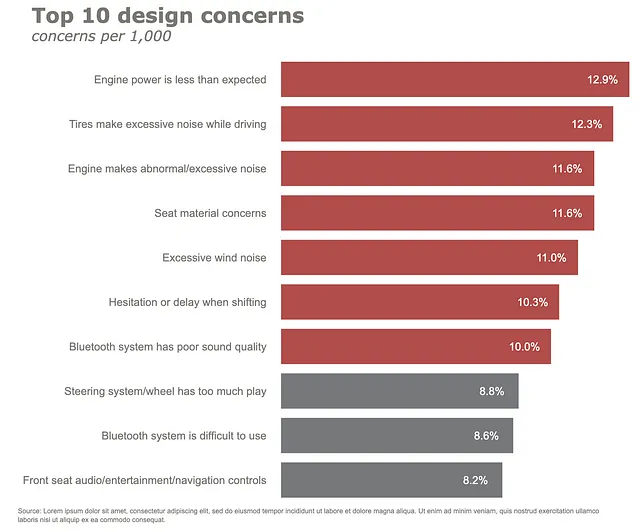
这个相对于初始默认版本来说是不是更好的图表呢?让我们继续探索另一个流行的图表——折线图。
请注意下面的示例比上面的示例更复杂。然而,思想仍然相同。
折线图
让我们快速查看折线图的默认 Matplotlib 绘图后端。
pd.options.plotting.backend = 'matplotlib'df = pd.DataFrame({"Received": [160,184,241,149,180,161,132,202,160,139,149,177], "Processed":[160,184,237,148,181,150,123,156,126,104,124,140]}, index=['Jan', 'Feb', 'Mar', 'Apr', 'May', 'Jun', 'Jul', 'Aug', 'Sep', 'Oct', 'Nov', 'Dec'])(df .plot .line());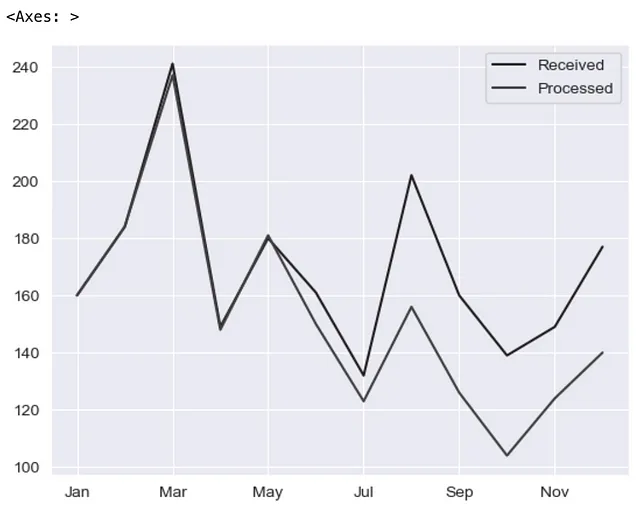
让我们将绘图后端切换到 Plotly!
pd.options.plotting.backend = 'plotly'(df .plot(x=df.index, y=df.Received, labels=dict(index="", value="票数"),))将 Pandas 绘图后端切换到 Plotly 后,上面的代码给出了以下结果。在这里,我们首先只绘制“Received”系列。
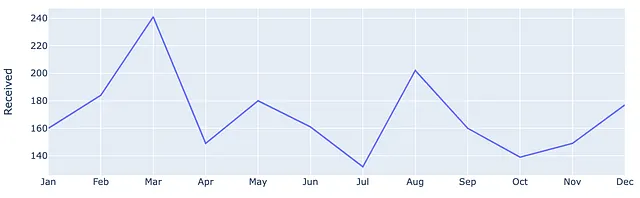
让我们通过进一步链接上述方法来更新线条属性。在这里,我们修改颜色、宽度,并在数据点上放置标记。
(df .plot(x=df.index, y=df.Received, labels=dict(index="", value="票数"),) .update_traces(go.Scatter(mode='lines+markers+text', line={"color": gray_palette[4], "width":4}, marker=dict(size=12)),))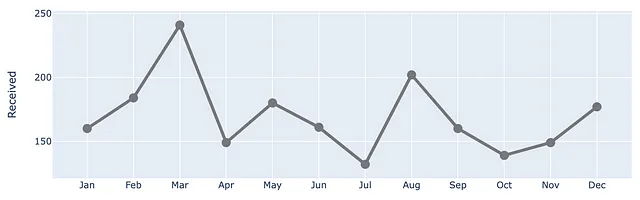
让我们将Processed系列添加到图表中!
(df .plot(x=df.index, y=df.Received, labels=dict(index="", value="票数"),) .update_traces(go.Scatter(mode='lines+markers+text', line={"color": gray_palette[4], "width":4}, marker=dict(size=12)),) .add_traces(go.Scatter(x=df.index, #添加 Processed 列 y=df.Processed, mode="lines+markers+text", line={"color": blue_palette[0], "width":4}, marker=dict(size=12))))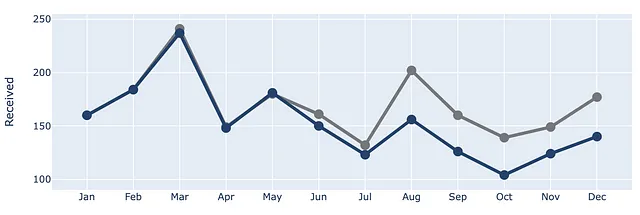
让我们在五月份的索引位置添加一条垂直线,以显示两条线开始分离的点。
(df .plot(x=df.index, y=df.Received, labels=dict(index="", value="票数"),) .update_traces(go.Scatter(mode='lines+markers+text', line={"color": gray_palette[4], "width":4}, marker=dict(size=12)),) .add_traces(go.Scatter(x=df.index, #添加 Processed 列 y=df.Processed, mode="lines+markers+text", line={"color": blue_palette[0], "width":4}, marker=dict(size=12))) .add_traces(go.Scatter(x=["May", "May"], #添加垂直线 y=[0,230], fill="toself", mode="lines", line_width=0.5, line_color= gray_palette[4])))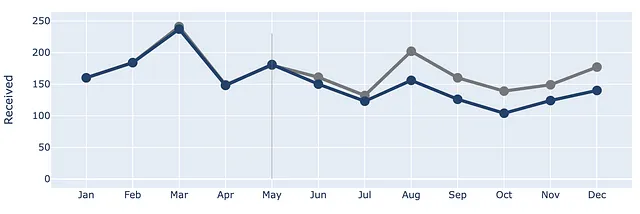
接下来,让我们通过将背景改为白色、添加标题、边距和其他一些元素来更新整体布局。对于注释,我们暂时将其注释掉。
(df .plot(x=df.index, y=df.Received, labels=dict(index="", value="票数"),) .update_traces(go.Scatter(mode='lines+markers+text', line={"color": gray_palette[4], "width":4}, marker=dict(size=12)),) .add_traces(go.Scatter(x=df.index, #添加Processed列 y=df.Processed, mode="lines+markers+text", line={"color": blue_palette[0], "width":4}, marker=dict(size=12))) .add_traces(go.Scatter(x=["五月", "五月"], #添加垂直线 y=[0,230], fill="toself", mode="lines", line_width=0.5, line_color= gray_palette[4])) .update_layout(template="plotly_white", title=dict(text="<b>请批准雇佣2个全职员工</b> <br><sup>以填补过去一年中离职的人员</sup> <br>随时间变化的票数 <br><br><br>", font_size=30,), margin=dict(l=50, r=50, b=100, t=200,), width=900, height=700, yaxis_range=[0, 300], showlegend=False, #annotations=right_annotations, ))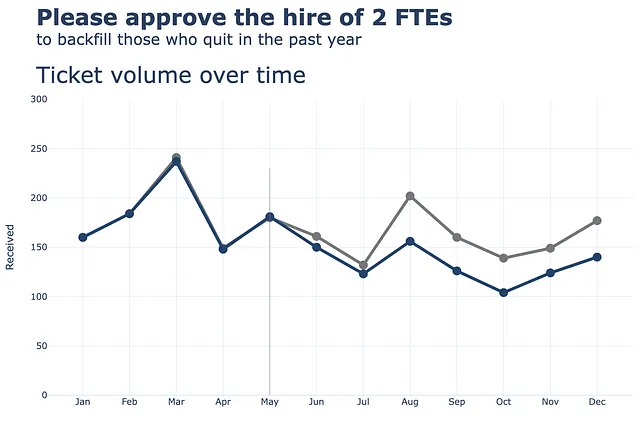
接下来,我们将对x轴和y轴进行更新。
(df .plot(x=df.index, y=df.Received, labels=dict(index="", value="票数"),) .update_traces(go.Scatter(mode='lines+markers+text', line={"color": gray_palette[4], "width":4}, marker=dict(size=12)),) .add_traces(go.Scatter(x=df.index, #添加Processed列 y=df.Processed, mode="lines+markers+text", line={"color": blue_palette[0], "width":4}, marker=dict(size=12))) .add_traces(go.Scatter(x=["五月", "五月"], #添加垂直线 y=[0,230], fill="toself", mode="lines", line_width=0.5, line_color= gray_palette[4])) .update_layout(template="plotly_white", title=dict(text="<b>请批准雇佣2个全职员工</b> <br><sup>以填补过去一年中离职的人员</sup> <br>随时间变化的票数 <br><br><br>", font_size=30,), margin=dict(l=50, r=50, b=100, t=200,), width=900, height=700, yaxis_range=[0, 300], showlegend=False, #annotations=right_annotations, ) .update_xaxes(dict(range=[0, 12], showline=True, showgrid=False, linecolor=gray_palette[4], linewidth=2, ticks='', tickfont=dict( family='Arial', size=13, color=gray_palette[4], ), )) .update_yaxes(dict(showline=True, showticklabels=True, showgrid=False, ticks='outside', linecolor=gray_palette[4], linewidth=2, tickfont=dict( family='Arial', size=13, color=gray_palette[4], ), title_text="票数" )))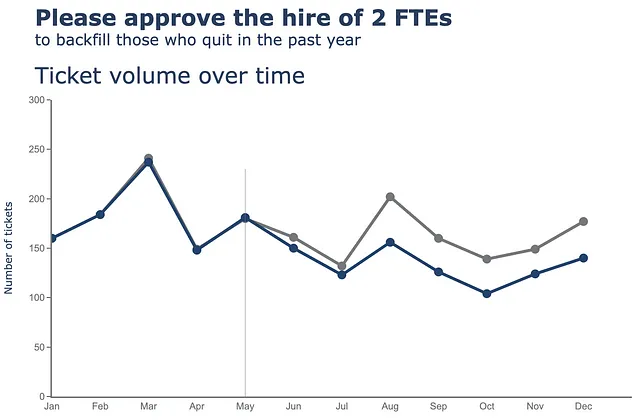
最后但同样重要的是,我们将向图表中添加一些注释。在这里,我们有一些注释——向折线图(Received、Processed)添加标签,以及向散点添加标签,这可能有点复杂。让我们一起来做这个。首先,我们在单独的单元格中定义注释。
y_data = df.to_numpy()colors = [gray_palette[3], blue_palette[0]]labels = df.columns.to_list()right_annotations = []# 向折线添加标签for y_trace, label, color in zip(y_data[-1], labels, colors): right_annotations.append(dict(xref='paper', x=0.95, y=y_trace, xanchor='left', yanchor='middle', text=label, font=dict(family='Arial',size=16,color=color), showarrow=False))# 向散点添加标签scatter_annotations = []y_received = [each for each in df.Received]y_processed = [float(each) for each in df.Processed]x_index = [each for each in df.index]y_r = np.round(y_received)y_p = np.rint(y_processed)for ydn, yd, xd in zip(y_r[-5:], y_p[-5:], x_index[-5:]): scatter_annotations.append(dict(xref='x2 domain', yref='y2 domain', y=ydn, x=xd, text='{:,}'.format(ydn), font=dict(family='Arial',size=16,color=gray_palette[4]), showarrow=False, xanchor='center', yanchor='bottom', )) scatter_annotations.append(dict(xref='x2 domain', yref='y2 domain', y=yd, x=xd, text='{:,}'.format(yd), font=dict(family='Arial',size=16,color=blue_palette[0]), showarrow=False, xanchor='center', yanchor='top', ))在我们定义好注释之后,我们只需要像下面这样将注释变量放入链式方法中。
(df .plot(x=df.index, y=df.Received, labels=dict(index="", value="Number of tickets"),) .update_traces(go.Scatter(mode='lines+markers+text', line={"color": gray_palette[4], "width":4}, marker=dict(size=12)),) .add_traces(go.Scatter(x=df.index, # 添加Processed列 y=df.Processed, mode="lines+markers+text", line={"color": blue_palette[0], "width":4}, marker=dict(size=12))) .add_traces(go.Scatter(x=["五月", "五月"], # 添加垂直线 y=[0,230], fill="toself", mode="lines", line_width=0.5, line_color= gray_palette[4])) .update_layout(template="plotly_white", title=dict(text="<b>请批准增加2个全职员工</b> <br><sup>以填补过去一年中离职的员工</sup> <br>随时间变化的工单数量 <br><br><br>", font_size=30,), margin=dict(l=50, r=50, b=100, t=200,), width=900, height=700, yaxis_range=[0, 300], showlegend=False, annotations=right_annotations, ) .update_layout(annotations=scatter_annotations * 2) .update_xaxes(dict(range=[0, 12], showline=True, showgrid=False, linecolor=gray_palette[4], linewidth=2, ticks='', tickfont=dict( family='Arial', size=13, color=gray_palette[4], ), )) .update_yaxes(dict(showline=True, showticklabels=True, showgrid=False, ticks='outside', linecolor=gray_palette[4], linewidth=2, tickfont=dict( family='Arial', size=13, color=gray_palette[4], ), title_text="工单数量" )) .add_annotation(dict(text="<b>五月有2名员工离职。</b>我们在接下来的两个月几乎跟上了工单的增长<br>但在八月份的增长使我们落后了<br>而且一直没能赶上。", font_size=18, align="left", x=7.5, y=265, showarrow=False)) .add_annotation(dict(xref='paper', yref='paper', x=0.5, y=-0.15, text='来源:Lorem ipsum dolor sit amet, consectetur adipiscing elit, sed do eiusmod tempor incididunt ut labore et dolore magna aliqua. Ut enim ad minim veniam, quis nostrud exercitation ullamco' '<br>laboris nisi ut aliquip ex ea commodo consequat.', font=dict(family='Arial', size=10, color='rgb(150,150,150)'), showarrow=False, align='left')) .update_annotations(yshift=0) .show())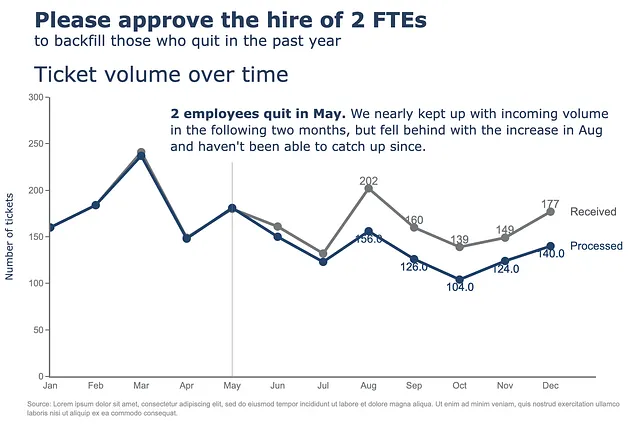
奖励:数字图表
恭喜您阅读到了文章的这一部分!这里有一个额外的图表供您参考!在这里,我们正在创建一个图表,以美观地展示一个数字本身。简而言之,这就是我所指的。

由于这不是DataFrame的结果,我们可以从头开始创建一个空的go.Figure对象,然后逐步添加注释。最后,我们根据需要更新布局。
(go.Figure() # 创建一个空的图形对象 .add_annotation( x=0.0, y=1, text='试点项目取得成功', showarrow=False, font={'size': 36, 'color': 'white'}, bgcolor=gray_palette[-3], bordercolor='gray', borderwidth=0, xref='paper', yref='paper', xanchor='left', yanchor='top', align='left', ax=0, ay=-10 ) .add_annotation( x=-1.0, # 文本位置的X坐标 y=3.0, # 文本位置的Y坐标 text="试点项目之后,", # 文本内容 showarrow=False, # 隐藏箭头 font=dict(size=20, color=blue_palette[1]), # 自定义字体大小 xanchor='left', yanchor='top', align='left', ) .add_annotation( x=-1.0, # 文本位置的X坐标 y=1.6, # 文本位置的Y坐标 text="<b>68%</b>", # 文本内容 showarrow=False, # 隐藏箭头 font=dict(size=160, color=blue_palette[1]), # 自定义字体大小 xanchor='left', align='left', ) .add_annotation( x=-1.0, # 文本位置的X坐标 y=0.2, # 文本位置的Y坐标 text="<b>的孩子对科学表示兴趣,</b>", # 文本内容 showarrow=False, # 隐藏箭头 font=dict(size=20, color=blue_palette[1]), # 自定义字体大小 xanchor='left', align='left', ) .add_annotation( x=-1.0, # 文本位置的X坐标 y=-0.2, # 文本位置的Y坐标 text="而进入该项目之前的44%相比。", # 文本内容 showarrow=False, # 隐藏箭头 font=dict(size=20, color=gray_palette[-3]), # 自定义字体大小 xanchor='left', align='left', ) .add_annotation( x=-1.0, # 文本位置的X坐标 y=-0.7, # 文本位置的Y坐标 text='基于对100名学生进行的调查 ' '在试点项目之前和之后 ' '(两次调查均为100%回应率)。', # 文本内容 showarrow=False, # 隐藏箭头 font=dict(size=10.5, color=gray_palette[-3]), # 自定义字体大小 xanchor='left', align='left', ) .update_layout( xaxis=dict(visible=False), # 隐藏x轴 yaxis=dict(visible=False), # 隐藏y轴 margin=dict(l=0, r=0, b=0, t=0, pad=0), font=dict(size=26, color=gray_palette[-3]), # 自定义字体大小 paper_bgcolor='rgba(0,0,0,0)', plot_bgcolor='rgba(0,0,0,0)' ) .show())后记
你就是这样!关键是逐步更新和完善你的图形,直到达到理想的结果。当然,每种技术都有其自身的局限性。如果你的图表变得过于复杂而难以生成,那么参考Plotly Express或者使用Plotly Graph Objects从头开始构建可能会很有益。起初采用这种技术可能会感到困难和陌生,但保持练习,很快你就能创建出有意义的美丽可视化!
如果你从这篇文章中获得了一些有用的东西,请考虑在VoAGI上给我一个关注。每周一篇文章,简单易懂,让你保持更新,走在前沿!
与我联系!
- LinkedIn 👔
- Twitter 🖊
参考资料
- Cole Nussbaumer Knaflic的《用数据讲故事》。https://www.storytellingwithdata.com/books
- Matplotlib Axes API。https://matplotlib.org/stable/api/axes_api.html
- Plotly绘图库。https://plotly.com/python/reference/